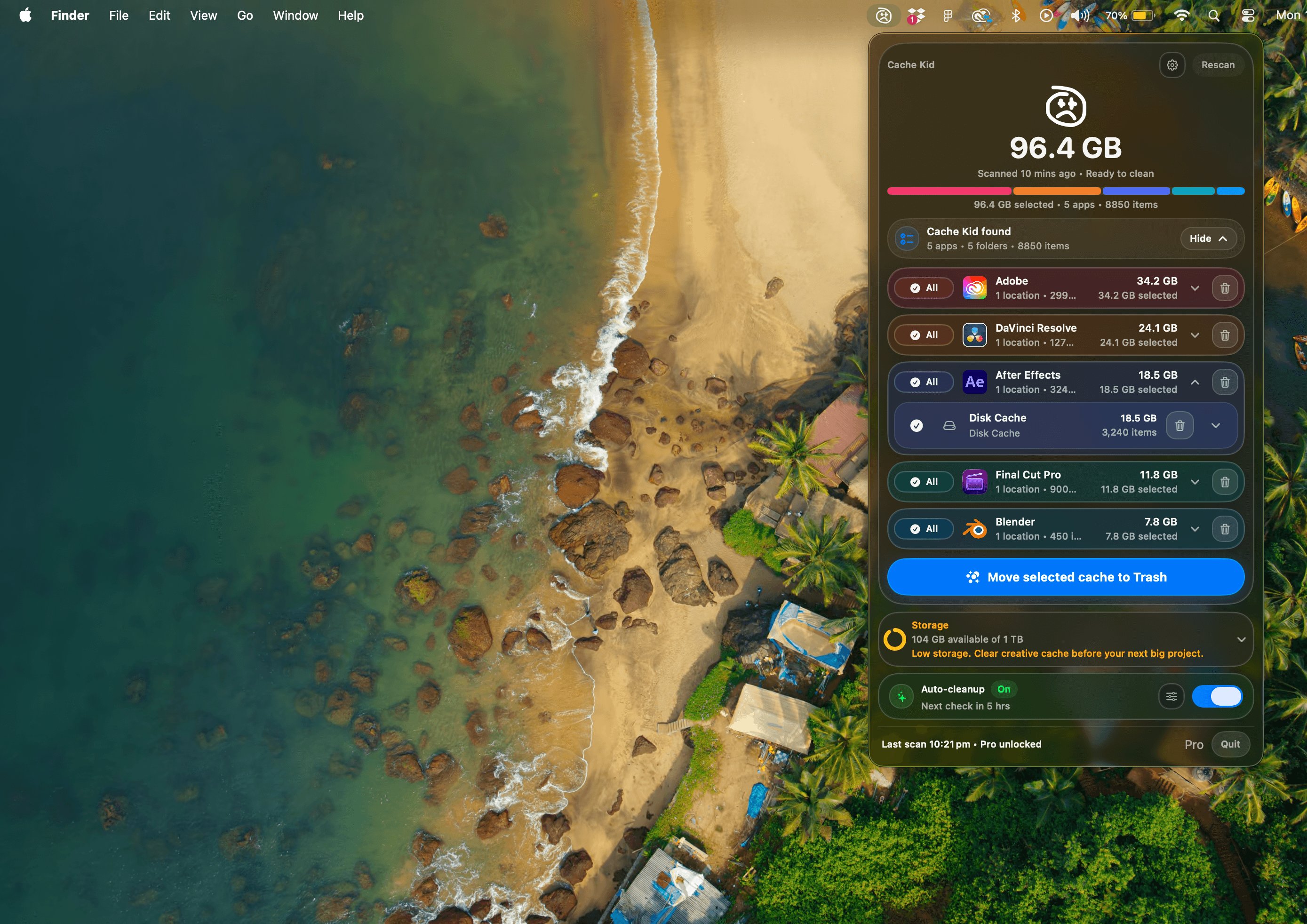
Review before clearing
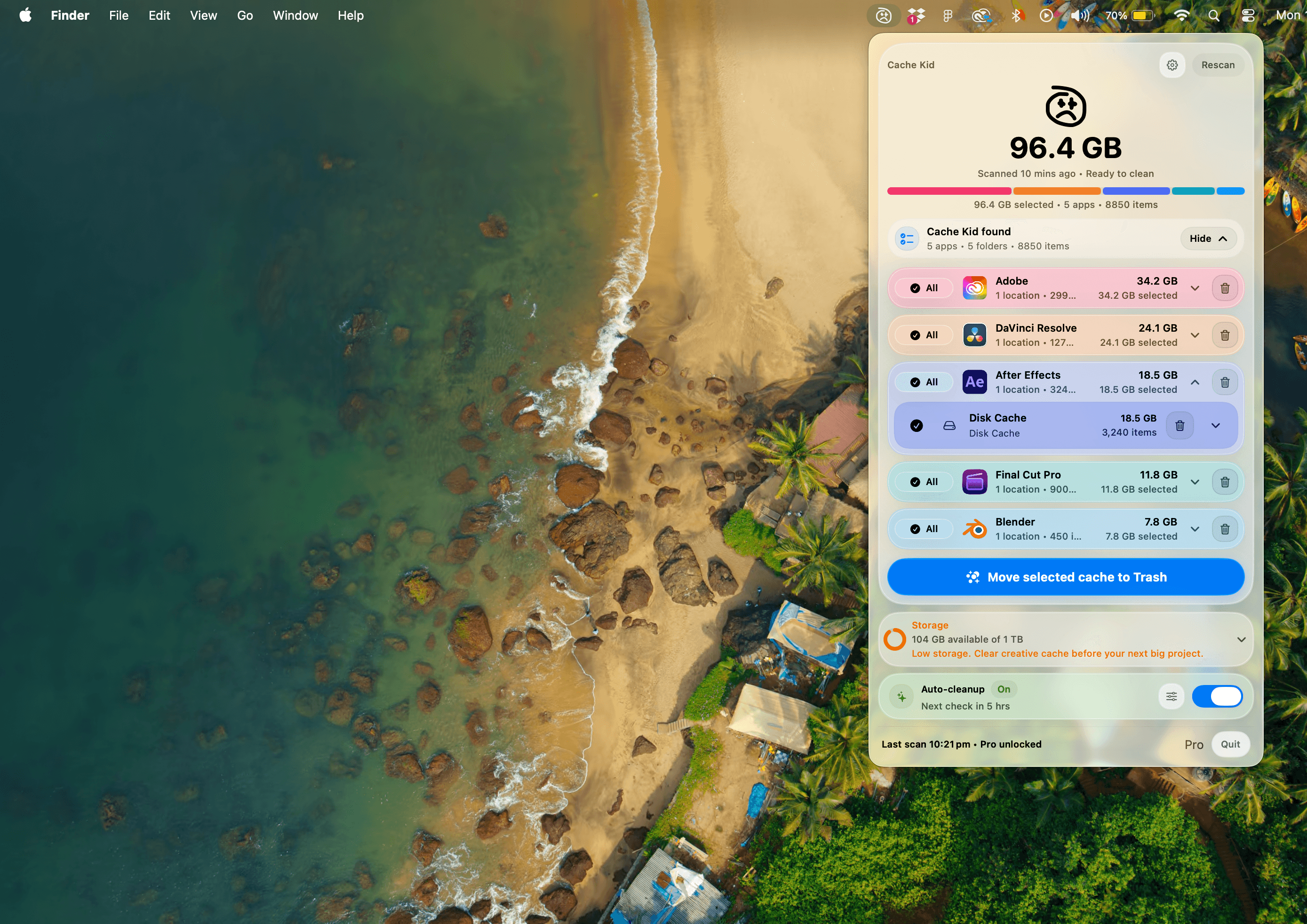
See exactly what Cache Kid found before anything goes to Trash.

See exactly what Cache Kid found before anything goes to Trash.
Clear the selected app caches that quietly eat through disk space.
Make room for new projects without digging through hidden folders.
Supported apps
Cache Kid keeps heavy cache folders in check across nearly every creative workflow, from editing and design to motion, audio, and 3D.
 Adobe / Creative Cloud
 After Effects
 Premiere Pro
 DaVinci Resolve
 Final Cut Pro
 Blender
 Cinema 4D
 Photoshop
 Lightroom Classic
 Logic Pro
 Ableton Live
 Figma
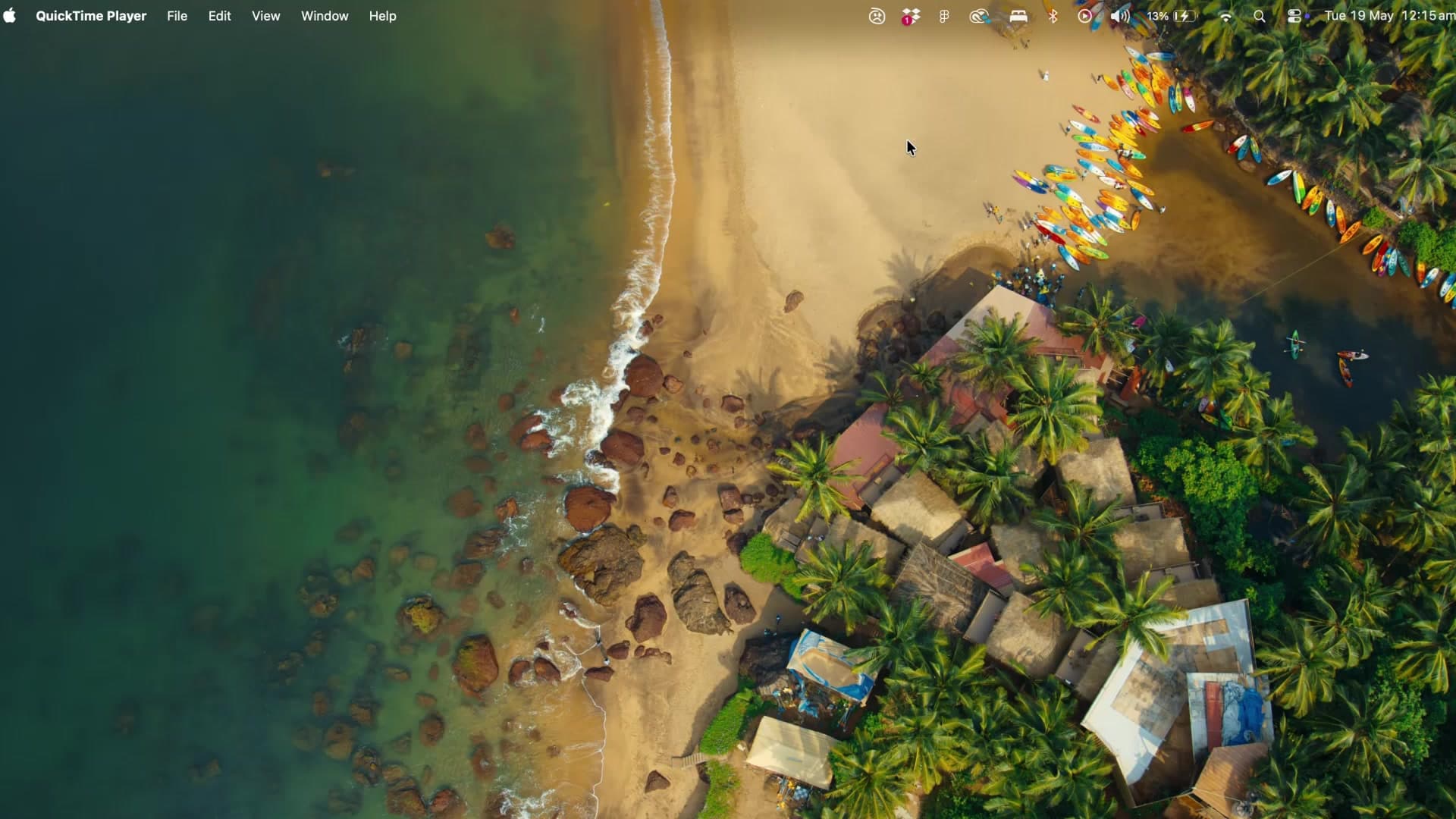
FigmaLight and dark
Cache Kid keeps the same calm, review-first workflow across light and dark appearances.
FAQ
Cache Kid keeps cleanup focused, local, and reviewable so creative cache never feels like a mystery.
Cache Kid scans known creative app cache, preview, render, log, and temporary folders. It is built for tools like Adobe apps, Final Cut Pro, DaVinci Resolve, Blender, Figma, Capture One, Logic Pro, and other creative apps.
No. Cache Kid is designed to avoid project files, source media, exports, documents, libraries, catalogs, archives, and other user-created work. It focuses on cache files creative apps can usually rebuild.
No. Cache Kid moves selected cache items to the macOS Trash. You can review the Trash before emptying it, or restore items if needed.
No. Cache Kid asks for access to specific folders using the standard macOS folder picker, starting with your Library folder. Some apps store cache elsewhere, so Cache Kid may ask for those folders only when needed.
In most cases, creative app cache files are generated by the app and can be rebuilt. Clearing cache can free storage, but some apps may take a little time to regenerate previews, waveforms, thumbnails, or render cache after cleanup.
Yes. Cache Kid blocks cleanup when related creative apps are running. This helps avoid moving cache while an app is actively using or rebuilding it.
Yes. Scans are always free. Free users also get two full clean runs before upgrading.
No. Cache Kid Pro is a one-time lifetime purchase through the Mac App Store. No subscription, ever.
No. Cache Kid is not a whole-Mac cleaner. It focuses on creative app cache folders and any custom cache folders you choose to add.
Yes. You can add custom cache folders in settings. Custom folders stay manual-review only and are not included in automatic cleanup.
No. Cache Kid works locally on your Mac. It does not upload your project files, media files, exports, documents, or scanned folder contents.
Cache Kid is focused on freeing storage used by creative app cache. It does not make fake performance promises. Some apps may even need a moment to rebuild cache after cleanup.